Cheatsheets:LinuxCLI/SysOps: Difference between revisions
AI-assisted (RonzzWikiCowriter): create SysOps cheatsheet from ops quick-reference notes (via create-page on MediaWiki MCP Server) |
|||
| (6 intermediate revisions by the same user not shown) | |||
| Line 1: | Line 1: | ||
{{DesktopLinux}} | {{DesktopLinux}} | ||
The everyday Linux system-administration commands: see who is on the box, spot CPU/RAM/disk hogs, manage users and groups, and control services with systemd | The everyday Linux system-administration commands: see who is on the box, spot CPU/RAM/disk hogs, manage users and groups, and control services with systemd. | ||
New to the command line? Every command here has a built-in manual — try <syntaxhighlight lang="bash" inline>man <command></syntaxhighlight> or [https://tldr.sh tldr] for short examples. | New to the Linux command line? Every command here has a built-in manual — try <syntaxhighlight lang="bash" inline>man <command></syntaxhighlight> or [https://tldr.sh tldr] for short examples. | ||
<blockquote> | |||
Many commands in this cheatsheet may require root priveledges. Use <syntaxhighlight lang="bash" inline>sudo</syntaxhighlight>. Don't log in as <code>root</code>. | |||
</blockquote> | |||
== Who is logged in == | == Who is logged in == | ||
| Line 14: | Line 18: | ||
</syntaxhighlight> | </syntaxhighlight> | ||
== Processes & resource | == Processes & resource == | ||
On Linux systems, each process has three identifiants: | |||
{| class="wikitable" | |||
! ID !! Identifies | |||
|- | |||
| '''PID''' || The process | |||
|- | |||
| '''PGID''' || The process group: normally regroups all processes created by one shell command | |||
|- | |||
| '''SID''' || The controlling terminal | |||
|} | |||
The hierarchy is therefore: | |||
<uml> | |||
@startuml | |||
!theme bluegray | |||
hide circle | |||
skinparam classAttributeIconSize 0 | |||
class SID { | |||
Session | |||
} | |||
class PGID { | |||
Process group | |||
} | |||
class PID { | |||
Process | |||
} | |||
SID *-- PGID : contains 1+ | |||
PGID *-- PID : contains 1+ | |||
@enduml | |||
</uml> | |||
=== Start processes === | |||
<syntaxhighlight lang="bash" copy> | |||
cmd & # run in background (new job) | |||
nohup cmd & # ignore SIGHUP; survives terminal exit | |||
nohup cmd >out.log 2>&1 & # ...and redirect both stdout and stderr | |||
setsid cmd # run in a new session (detached from TTY) | |||
setsid -f cmd # ...and fork if already a process group leader | |||
disown %1 # remove job from shell's job table | |||
disown -h %1 # keep job but mark to ignore SIGHUP | |||
set -m # enable job control in a non-interactive shell | |||
nice -n 10 cmd # start with lower priority (higher niceness) | |||
renice -n 5 -p "$pid" # change niceness of a running process | |||
timeout 30s cmd # kill cmd if it runs longer than 30s | |||
timeout -s KILL 30s cmd # ...send SIGKILL instead of SIGTERM | |||
start-stop-daemon --start --background --exec /usr/bin/cmd | |||
</syntaxhighlight> | |||
where <code>cmd</code> is any arbitrary command. | |||
=== Monitor processes === | |||
<syntaxhighlight lang="bash" copy> | <syntaxhighlight lang="bash" copy> | ||
ps aux # all processes | ps "$pid" # show info on a particular process | ||
ps -o pid,pgid,sid,comm -p 3995 # show PID, PGID, SID for the process | |||
ps aux # show all processes of all users | |||
ps aux --sort=-%cpu | head -10 # top CPU consumers | ps aux --sort=-%cpu | head -10 # top CPU consumers | ||
ps aux --sort=-%mem | head -10 # top memory consumers | ps aux --sort=-%mem | head -10 # top memory consumers | ||
free -h # RAM and swap usage | free -h # RAM and swap usage | ||
uptime # load average and uptime | uptime # load average and uptime | ||
pgrep -af "$name" # Search by process name: show PID and command line | |||
</syntaxhighlight> | |||
<syntaxhighlight lang="bash" copy> | |||
htop # CLI interactive process manager (may require manual installation: older systems only pre-install `top`) | |||
</syntaxhighlight> | </syntaxhighlight> | ||
| Line 40: | Line 108: | ||
|} | |} | ||
Killing processes | === Killing processes === | ||
<syntaxhighlight lang="bash" copy> | <syntaxhighlight lang="bash" copy> | ||
kill -9 PID # force-kill by PID | kill PID # kill by PID | ||
kill -9 PID # force-kill by PID | |||
kill -PGID # kill by PGID | |||
kill -s SID # kill by SID | |||
pkill -u username # kill every process of a user | pkill -u username # kill every process of a user | ||
pkill -f "pattern" # kill processes whose command line matches | pkill -f "pattern" # kill processes whose command line matches | ||
kill -l # list all signal names | pkill -f "pattern" -s 9 # force kill processes whose command line matches (signal 9 = FORCE KILL) | ||
fuser "$port/tcp" # Search by TCP port: show PID(s) bound to port | |||
fuser -k "$port/tcp" # Kill by TCP port: terminate process bound to port | |||
kill -l # list all available signal names | |||
</syntaxhighlight> | </syntaxhighlight> | ||
| Line 54: | Line 131: | ||
| 1 <syntaxhighlight lang="text" inline>HUP</syntaxhighlight> || reload configuration | | 1 <syntaxhighlight lang="text" inline>HUP</syntaxhighlight> || reload configuration | ||
|- | |- | ||
| | | 15 <syntaxhighlight lang="text" inline>TERM</syntaxhighlight> || graceful shutdown (the default) | ||
|- | |- | ||
| | | 9 <syntaxhighlight lang="text" inline>KILL</syntaxhighlight> || force kill — '''may cause data loss''' | ||
|} | |} | ||
Latest revision as of 14:57, 22 September 2026
Quick reference for smart people — part of our Linux cheatsheets collection.
The everyday Linux system-administration commands: see who is on the box, spot CPU/RAM/disk hogs, manage users and groups, and control services with systemd.
New to the Linux command line? Every command here has a built-in manual — try man <command> or tldr for short examples.
Many commands in this cheatsheet may require root priveledges. Use
sudo. Don't log in asroot.
Who is logged in
who            # who is currently logged in
w              # who is logged in, and what they are running
last           # history of all logins (reads /var/log/wtmp)
id username    # a user's UID, GID and group memberships
Processes & resource
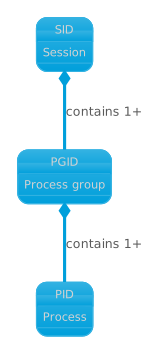
On Linux systems, each process has three identifiants:
| ID | Identifies |
|---|---|
| PID | The process |
| PGID | The process group: normally regroups all processes created by one shell command |
| SID | The controlling terminal |
The hierarchy is therefore:
Start processes
cmd &                             # run in background (new job)
nohup cmd &                       # ignore SIGHUP; survives terminal exit
nohup cmd >out.log 2>&1 &         # ...and redirect both stdout and stderr
setsid cmd                        # run in a new session (detached from TTY)
setsid -f cmd                     # ...and fork if already a process group leader
disown %1                         # remove job from shell's job table
disown -h %1                      # keep job but mark to ignore SIGHUP
set -m                            # enable job control in a non-interactive shell
nice -n 10 cmd                    # start with lower priority (higher niceness)
renice -n 5 -p "$pid"             # change niceness of a running process
timeout 30s cmd                   # kill cmd if it runs longer than 30s
timeout -s KILL 30s cmd           # ...send SIGKILL instead of SIGTERM
start-stop-daemon --start --background --exec /usr/bin/cmd
where cmd is any arbitrary command.
Monitor processes
ps "$pid"                         # show info on a particular process
ps -o pid,pgid,sid,comm -p 3995   # show PID, PGID, SID for the process
ps aux                            # show all processes of all users
ps aux --sort=-%cpu | head -10    # top CPU consumers
ps aux --sort=-%mem | head -10    # top memory consumers
free -h                           # RAM and swap usage
uptime                            # load average and uptime
pgrep -af "$name"                 # Search by process name: show PID and command line
htop # CLI interactive process manager (may require manual installation: older systems only pre-install `top`)
| Column | Meaning |
|---|---|
USER |
owner of the process |
%CPU / %MEM |
CPU / memory share |
VSZ / RSS |
virtual / resident memory |
STAT |
state: R running, S sleeping, Z zombie |
COMMAND |
the program and its arguments |
Killing processes
kill PID               # kill by PID
kill -9 PID            # force-kill by PID
kill -PGID             # kill by PGID
kill -s SID            # kill by SID

pkill -u username      # kill every process of a user
pkill -f "pattern"     # kill processes whose command line matches
pkill -f "pattern" -s 9    # force kill processes whose command line matches (signal 9 = FORCE KILL)

fuser "$port/tcp"      # Search by TCP port: show PID(s) bound to port
fuser -k "$port/tcp"   # Kill by TCP port: terminate process bound to port

kill -l                # list all available signal names
| Signal | Meaning |
|---|---|
1 HUP |
reload configuration |
15 TERM |
graceful shutdown (the default) |
9 KILL |
force kill — may cause data loss |
kill -9is a last resort — prefer plainkill(SIGTERM) so the process can save state and close files cleanly.
Disk usage
df -h                    # free space per mounted filesystem
df -h /                  # free space on one filesystem
df -i                    # inode usage
du -sh dir/              # total size of a directory
du -sh *                 # size of each item in the current directory
du -h --max-depth=1 dir/ # per subdirectory
du -sh /* 2>/dev/null | sort -h   # largest top-level folders
"Disk full" with
df -hshowing free space? Check inodes withdf -i— millions of tiny files can exhaust the inode table first.
Users & groups
useradd -m -s /bin/bash john   # create john: home dir (-m) and bash shell (-s)
passwd john                    # set or change john's password
usermod -aG sudo john          # add john to the sudo (admin) group
usermod -d /new/home john      # change john's home directory
usermod -L john                # lock john's account
usermod -U john                # unlock it again
userdel -r john                # delete john and their home dir
groups username      # groups a user belongs to
groupadd deploy      # create a group
groupdel deploy      # delete a group
usermod -aG deploy john   # add john to the deploy group
Services & logs (systemd)
systemctl status nginx     # is it running? why not?
systemctl start nginx      # start now
systemctl stop nginx       # stop now
systemctl restart nginx    # stop, then start again
systemctl reload nginx     # reload config without a full restart
systemctl enable nginx     # start at boot
systemctl disable nginx    # don't start at boot
systemctl --failed         # units that failed to start
journalctl -u nginx            # logs for one service
journalctl -u nginx -f         # follow new log lines live
journalctl -u nginx -n 100     # last 100 lines
journalctl -u nginx --since "1 hour ago"
journalctl -xe                 # recent log + hints about errors
Emergencies quick reference
| Scenario | Command |
|---|---|
| Server slow — find the CPU hog | ps aux --sort=-%cpu | head -10
|
| Out of RAM — find the memory hog | ps aux --sort=-%mem | head -10
|
| Disk 100% full — find the biggest folder | du -sh /* 2>/dev/null | sort -h
|
| A user is abusing the system — kick them out | pkill -u username or sudo kill -9 PID
|
| Change a password immediately | passwd username
|
| Lock / unlock an account | usermod -L username / usermod -U username
|
| Who changed a file | stat file.txt (access / change / modification times)
|
Further reading
man <command>— the built-in manual, always installed- man pages online
- systemd documentation — for systemctl and journalctl
- tldr — community-maintained short examples
- Linux Journey — beginner-friendly tutorial