
LinuxCLI/SysOps in Cheatsheet
No edit summary |
|||
| (One intermediate revision by one other user not shown) | |||
| Line 3: | Line 3: | ||
The everyday Linux system-administration commands: see who is on the box, spot CPU/RAM/disk hogs, manage users and groups, and control services with systemd. | The everyday Linux system-administration commands: see who is on the box, spot CPU/RAM/disk hogs, manage users and groups, and control services with systemd. | ||
New to the Linux command line? Every command here has a built-in manual — try < | New to the Linux command line? Every command here has a built-in manual — try <code>man <command></code> or [https://tldr.sh tldr] for short examples. | ||
<blockquote> | <blockquote> | ||
Many commands in this cheatsheet may require root priveledges. Use < | Many commands in this cheatsheet may require root priveledges. Use <code>sudo</code>. Don't log in as <code>root</code>. | ||
</blockquote> | </blockquote> | ||
| Line 97: | Line 97: | ||
! Column !! Meaning | ! Column !! Meaning | ||
|- | |- | ||
| < | | <code>USER</code> || owner of the process | ||
|- | |- | ||
| < | | <code>%CPU</code> / <code>%MEM</code> || CPU / memory share | ||
|- | |- | ||
| < | | <code>VSZ</code> / <code>RSS</code> || virtual / resident memory | ||
|- | |- | ||
| < | | <code>STAT</code> || state: R running, S sleeping, Z zombie | ||
|- | |- | ||
| < | | <code>COMMAND</code> || the program and its arguments | ||
|} | |} | ||
| Line 129: | Line 129: | ||
! Signal !! Meaning | ! Signal !! Meaning | ||
|- | |- | ||
| 1 < | | 1 <code>HUP</code> || reload configuration | ||
|- | |- | ||
| 15 < | | 15 <code>TERM</code> || graceful shutdown (the default) | ||
|- | |- | ||
| 9 < | | 9 <code>KILL</code> || force kill — '''may cause data loss''' | ||
|} | |} | ||
<blockquote> | <blockquote> | ||
'''< | '''<code>kill -9</code> is a last resort''' — prefer plain <code>kill</code> (SIGTERM) so the process can save state and close files cleanly. | ||
</blockquote> | </blockquote> | ||
| Line 153: | Line 153: | ||
<blockquote> | <blockquote> | ||
'''"Disk full" with < | '''"Disk full" with <code>df -h</code> showing free space?''' Check inodes with <code>df -i</code> — millions of tiny files can exhaust the inode table first. | ||
</blockquote> | </blockquote> | ||
| Line 201: | Line 201: | ||
! Scenario !! Command | ! Scenario !! Command | ||
|- | |- | ||
| Server slow — find the CPU hog || < | | Server slow — find the CPU hog || <code>ps aux --sort=-%cpu | head -10</code> | ||
|- | |- | ||
| Out of RAM — find the memory hog || < | | Out of RAM — find the memory hog || <code>ps aux --sort=-%mem | head -10</code> | ||
|- | |- | ||
| Disk 100% full — find the biggest folder || < | | Disk 100% full — find the biggest folder || <code>du -sh /* 2>/dev/null | sort -h</code> | ||
|- | |- | ||
| A user is abusing the system — kick them out || < | | A user is abusing the system — kick them out || <code>pkill -u username</code> or <code>sudo kill -9 PID</code> | ||
|- | |- | ||
| Change a password immediately || < | | Change a password immediately || <code>passwd username</code> | ||
|- | |- | ||
| Lock / unlock an account || < | | Lock / unlock an account || <code>usermod -L username</code> / <code>usermod -U username</code> | ||
|- | |- | ||
| Who changed a file || < | | Who changed a file || <code>stat file.txt</code> (access / change / modification times) | ||
|} | |} | ||
== Further reading == | == Further reading == | ||
* < | * <code>man <command></code> — the built-in manual, always installed | ||
* [https://www.man7.org/linux/man-pages/ man pages online] | * [https://www.man7.org/linux/man-pages/ man pages online] | ||
* [https://www.freedesktop.org/software/systemd/man/ systemd documentation] — for systemctl and journalctl | * [https://www.freedesktop.org/software/systemd/man/ systemd documentation] — for systemctl and journalctl | ||
* [https://tldr.sh tldr] — community-maintained short examples | * [https://tldr.sh tldr] — community-maintained short examples | ||
* [https://linuxjourney.com Linux Journey] — beginner-friendly tutorial | * [https://linuxjourney.com Linux Journey] — beginner-friendly tutorial | ||
[[Category:LinuxCLI]] | |||
Latest revision as of 08:33, 30 September 2026
Quick reference for smart people — part of our Linux cheatsheets collection.
The everyday Linux system-administration commands: see who is on the box, spot CPU/RAM/disk hogs, manage users and groups, and control services with systemd.
New to the Linux command line? Every command here has a built-in manual — try man <command> or tldr for short examples.
Many commands in this cheatsheet may require root priveledges. Use
sudo. Don't log in asroot.
Who is logged in
who            # who is currently logged in
w              # who is logged in, and what they are running
last           # history of all logins (reads /var/log/wtmp)
id username    # a user's UID, GID and group memberships
Processes & resource
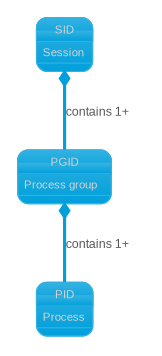
On Linux systems, each process has three identifiants:
| ID | Identifies |
|---|---|
| PID | The process |
| PGID | The process group: normally regroups all processes created by one shell command |
| SID | The controlling terminal |
The hierarchy is therefore:
Start processes
cmd &                             # run in background (new job)
nohup cmd &                       # ignore SIGHUP; survives terminal exit
nohup cmd >out.log 2>&1 &         # ...and redirect both stdout and stderr
setsid cmd                        # run in a new session (detached from TTY)
setsid -f cmd                     # ...and fork if already a process group leader
disown %1                         # remove job from shell's job table
disown -h %1                      # keep job but mark to ignore SIGHUP
set -m                            # enable job control in a non-interactive shell
nice -n 10 cmd                    # start with lower priority (higher niceness)
renice -n 5 -p "$pid"             # change niceness of a running process
timeout 30s cmd                   # kill cmd if it runs longer than 30s
timeout -s KILL 30s cmd           # ...send SIGKILL instead of SIGTERM
start-stop-daemon --start --background --exec /usr/bin/cmd
where cmd is any arbitrary command.
Monitor processes
ps "$pid"                         # show info on a particular process
ps -o pid,pgid,sid,comm -p 3995   # show PID, PGID, SID for the process
ps aux                            # show all processes of all users
ps aux --sort=-%cpu | head -10    # top CPU consumers
ps aux --sort=-%mem | head -10    # top memory consumers
free -h                           # RAM and swap usage
uptime                            # load average and uptime
pgrep -af "$name"                 # Search by process name: show PID and command line
htop # CLI interactive process manager (may require manual installation: older systems only pre-install `top`)
| Column | Meaning |
|---|---|
USER |
owner of the process |
%CPU / %MEM |
CPU / memory share |
VSZ / RSS |
virtual / resident memory |
STAT |
state: R running, S sleeping, Z zombie |
COMMAND |
the program and its arguments |
Killing processes
kill PID               # kill by PID
kill -9 PID            # force-kill by PID
kill -PGID             # kill by PGID
kill -s SID            # kill by SID

pkill -u username      # kill every process of a user
pkill -f "pattern"     # kill processes whose command line matches
pkill -f "pattern" -s 9    # force kill processes whose command line matches (signal 9 = FORCE KILL)

fuser "$port/tcp"      # Search by TCP port: show PID(s) bound to port
fuser -k "$port/tcp"   # Kill by TCP port: terminate process bound to port

kill -l                # list all available signal names
| Signal | Meaning |
|---|---|
1 HUP |
reload configuration |
15 TERM |
graceful shutdown (the default) |
9 KILL |
force kill — may cause data loss |
kill -9is a last resort — prefer plainkill(SIGTERM) so the process can save state and close files cleanly.
Disk usage
df -h                    # free space per mounted filesystem
df -h /                  # free space on one filesystem
df -i                    # inode usage
du -sh dir/              # total size of a directory
du -sh *                 # size of each item in the current directory
du -h --max-depth=1 dir/ # per subdirectory
du -sh /* 2>/dev/null | sort -h   # largest top-level folders
"Disk full" with
df -hshowing free space? Check inodes withdf -i— millions of tiny files can exhaust the inode table first.
Users & groups
useradd -m -s /bin/bash john   # create john: home dir (-m) and bash shell (-s)
passwd john                    # set or change john's password
usermod -aG sudo john          # add john to the sudo (admin) group
usermod -d /new/home john      # change john's home directory
usermod -L john                # lock john's account
usermod -U john                # unlock it again
userdel -r john                # delete john and their home dir
groups username      # groups a user belongs to
groupadd deploy      # create a group
groupdel deploy      # delete a group
usermod -aG deploy john   # add john to the deploy group
Services & logs (systemd)
systemctl status nginx     # is it running? why not?
systemctl start nginx      # start now
systemctl stop nginx       # stop now
systemctl restart nginx    # stop, then start again
systemctl reload nginx     # reload config without a full restart
systemctl enable nginx     # start at boot
systemctl disable nginx    # don't start at boot
systemctl --failed         # units that failed to start
journalctl -u nginx            # logs for one service
journalctl -u nginx -f         # follow new log lines live
journalctl -u nginx -n 100     # last 100 lines
journalctl -u nginx --since "1 hour ago"
journalctl -xe                 # recent log + hints about errors
Emergencies quick reference
| Scenario | Command |
|---|---|
| Server slow — find the CPU hog | head -10 |
| Out of RAM — find the memory hog | head -10 |
| Disk 100% full — find the biggest folder | sort -h |
| A user is abusing the system — kick them out | pkill -u username or sudo kill -9 PID
|
| Change a password immediately | passwd username
|
| Lock / unlock an account | usermod -L username / usermod -U username
|
| Who changed a file | stat file.txt (access / change / modification times)
|
Further reading
man <command>— the built-in manual, always installed- man pages online
- systemd documentation — for systemctl and journalctl
- tldr — community-maintained short examples
- Linux Journey — beginner-friendly tutorial