Help:Contributing/richMediaContent: Difference between revisions
Fix item link to Item:Q162 (items live in the Item namespace) + label MediaWiki official docs (via update-page on MediaWiki MCP Server) |
Restore Files-and-entities heading; label mediawiki.org refs as MediaWiki official (via update-page on MediaWiki MCP Server) |
||
| Line 15: | Line 15: | ||
After uploading, the file lives at a page called <syntaxhighlight lang="text" inline>File:Name.ext</syntaxhighlight>. The page shows the image and its description. To replace a file, use "Upload a new version of this file" on the file page — the history keeps every version. | After uploading, the file lives at a page called <syntaxhighlight lang="text" inline>File:Name.ext</syntaxhighlight>. The page shows the image and its description. To replace a file, use "Upload a new version of this file" on the file page — the history keeps every version. | ||
Files larger than roughly 100 MB are slow to upload in one request. Use chunked uploads through the API instead: see the official [https://www.mediawiki.org/wiki/API:Upload API:Upload] documentation. | Files larger than roughly 100 MB are slow to upload in one request. Use chunked uploads through the API instead: see the MediaWiki official [https://www.mediawiki.org/wiki/API:Upload API:Upload] documentation. | ||
== Embedding a file == | == Embedding a file == | ||
| Line 61: | Line 61: | ||
Add categories at the bottom of the file page, just like on any page. | Add categories at the bottom of the file page, just like on any page. | ||
== Files and entities == | |||
A file is not an entity and has no Q number: it cannot carry statements itself. To attach a file to an item, add a statement on the item with the [[Property:P32|image property (P32)]], whose datatype is Url, and put the file page URL as the value. | A file is not an entity and has no Q number: it cannot carry statements itself. To attach a file to an item, add a statement on the item with the [[Property:P32|image property (P32)]], whose datatype is Url, and put the file page URL as the value. | ||
| Line 74: | Line 76: | ||
== See also == | == See also == | ||
* [https://www.mediawiki.org/wiki/Help:Images Help:Images] (official) — the complete image syntax reference | * [https://www.mediawiki.org/wiki/Help:Images Help:Images] (MediaWiki official) — the complete image syntax reference | ||
* [https://www.mediawiki.org/wiki/Help:Linking_to_files Help:Linking to files] (official) — linking and download behavior | * [https://www.mediawiki.org/wiki/Help:Linking_to_files Help:Linking to files] (MediaWiki official) — linking and download behavior | ||
* [https://www.mediawiki.org/wiki/API:Upload API:Upload] (official) — uploads, including chunked uploads | * [https://www.mediawiki.org/wiki/API:Upload API:Upload] (MediaWiki official) — uploads, including chunked uploads | ||
* [[Help:Contributing]] — the contributor hub | * [[Help:Contributing]] — the contributor hub | ||
Revision as of 11:43, 19 August 2026
Files on this wiki are classic wiki pages in the File: namespace, not Wikibase entities. The media workflow has two steps: upload the file, then embed it in a page.
Uploading a file
You must be logged in — anonymous visitors are read-only. Open Special:Upload, or use the "Upload file" link in the toolbox on the left.
The form asks for three things:
- Source file — the file on your computer. This wiki accepts
png,gif,jpg,jpegandwebp. - Destination filename — the name the file will have here, for example
Example.png. Choose a descriptive, unique name. - Summary — what the file shows and where it comes from.
The size limit is 1 GiB. The form warns for files larger than 50 MB — the warning does not block the upload.
After uploading, the file lives at a page called File:Name.ext. The page shows the image and its description. To replace a file, use "Upload a new version of this file" on the file page — the history keeps every version.
Files larger than roughly 100 MB are slow to upload in one request. Use chunked uploads through the API instead: see the MediaWiki official API:Upload documentation.
Embedding a file
The examples below use Example.png, a public-domain NASA photograph of Earth. The You get column shows each example rendered live. Replace Example.png with your file's name.
| You type | What it does | You get |
|---|---|---|
[[File:Example.png]]
|
Renders the image at full size, inline. | 
|
[[File:Example.png|thumb|Caption text]]
|
A thumbnail floating right, with a caption. The most common choice on content pages. | |
[[File:Example.png|300px]]
|
Fixes the width to 300 pixels; the height keeps the proportions. |
|
[[File:Example.png|thumb|left|Caption text]]
|
Thumbnail floating left. Use left, right, center or none.
|
|
[[File:Example.png|alt=The Earth seen from Apollo 17]]
|
Sets the alt text, read by screen readers and shown when the image cannot load. The visible render is unchanged. |
|
[[File:Example.png|link=Main Page]]
|
Clicking the image opens Main Page instead of the file page. The render looks the same. | 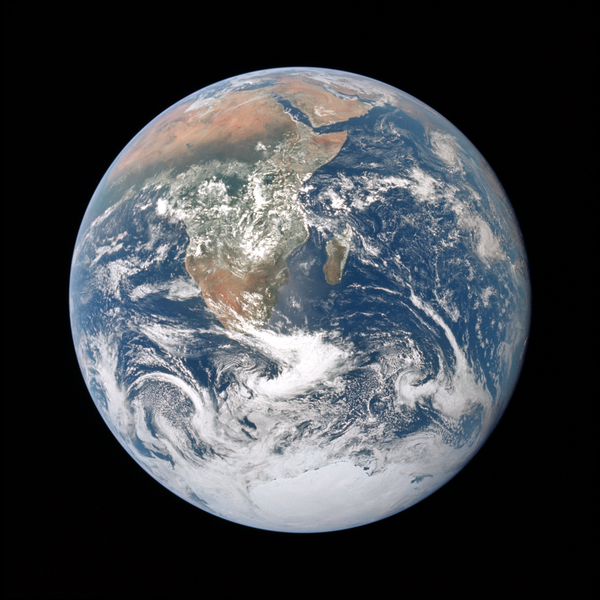
|
[[:File:Example.png]]
|
A text link to the file page — the leading colon prevents embedding. | File:Example.png |
[[Media:Example.png]]
|
A direct link to the file itself; the reader downloads it instead of seeing it embedded. | Media:Example.png |
Options are separated by pipes, in any order. Any parameter that is not an option becomes the caption. A red link means the file does not exist — check the spelling or upload the file first.
Add categories at the bottom of the file page, just like on any page.
Files and entities
A file is not an entity and has no Q number: it cannot carry statements itself. To attach a file to an item, add a statement on the item with the image property (P32), whose datatype is Url, and put the file page URL as the value.
Example — the item Blue Marble (photograph) carries the statement:
image→https://wikibase.ronzz.org/wiki/File:Example.png
Open Special:EntityPage/Q162 to see it live: the statement links to the file page, and the file page renders the image. Because the value is a plain URL, the same property works for any file you can link to — an upload on this wiki, a picture hosted elsewhere, or a file on Wikimedia Commons.
The statement workflow is the usual one: Items and properties.
See also
- Help:Images (MediaWiki official) — the complete image syntax reference
- Help:Linking to files (MediaWiki official) — linking and download behavior
- API:Upload (MediaWiki official) — uploads, including chunked uploads
- Help:Contributing — the contributor hub