Help:Contributing/richMediaContent
Files on this wiki are classic wiki pages in the File: namespace.
You must upload a file before including it in a page.
Uploading a file
You must be logged in — anonymous visitors can only read content. Open Special:Upload, or use the "Upload file" link in the toolbox on the left.
The form asks for three things:
- Source file — the file on your computer. This wiki accepts
png,gif,jpg,jpegandwebpfor images, andogg,ogv,ogaandwebmfor audio and video. - Destination filename — the name the file will have here, for example
Example.png. Choose a descriptive, unique name. - Summary — the file description: what the file contains or shows, and where it comes from. This text is what visitors see in Special:ListFiles, so describe the file itself — not where it is used or how it was processed.
| Avoid — where the file is used or what was done to it | Write this — what the file shows |
|---|---|
| "Sample video for Help:Contributing/richMediaContent" | NASA Apollo 11 television footage of Buzz Aldrin descending the lunar module ladder. Public domain (NASA). |
| "Resized to 600 × 600 to fit the help page" | Photograph of Earth, the "Blue Marble", taken by the Apollo 17 crew. Public domain (NASA). |
The summary cannot be edited in place. To correct it, upload a new version of the file (it may be the same file) with the corrected summary. The text on the file page — what visitors see under the media — is separate and can be edited like any page; keep it consistent with the summary.
The size limit is 1 GiB. The form warns for files larger than 50 MB — the warning does not block the upload.
After uploading, the file lives at a page called File:Name.ext. The page shows the media and its description. To replace a file, use "Upload a new version of this file" on the file page — the history keeps every version.
Files larger than roughly 100 MB are slow to upload in one request. Use chunked uploads through the API instead: see the MediaWiki official API:Upload documentation.
Embedding an image
The examples below use Example.png, a public-domain NASA photograph of Earth. The You get column shows each example rendered live. Replace Example.png with your file's name.
| You type | What it does | You get |
|---|---|---|
[[File:Example.png]]
|
Renders the image at full size, inline. | 
|
[[File:Example.png|thumb|Caption text]]
|
A thumbnail floating right, with a caption. The most common choice on content pages. | |
[[File:Example.png|300px]]
|
Fixes the width to 300 pixels; the height keeps the proportions. |
|
[[File:Example.png|thumb|left|Caption text]]
|
Thumbnail floating left. Use left, right, center or none.
|
|
[[File:Example.png|alt=The Earth seen from Apollo 17]]
|
Sets the alt text, read by screen readers and shown when the image cannot load. The visible render is unchanged. |
|
[[File:Example.png|link=Main Page]]
|
Clicking the image opens Main Page instead of the file page. The render looks the same. | 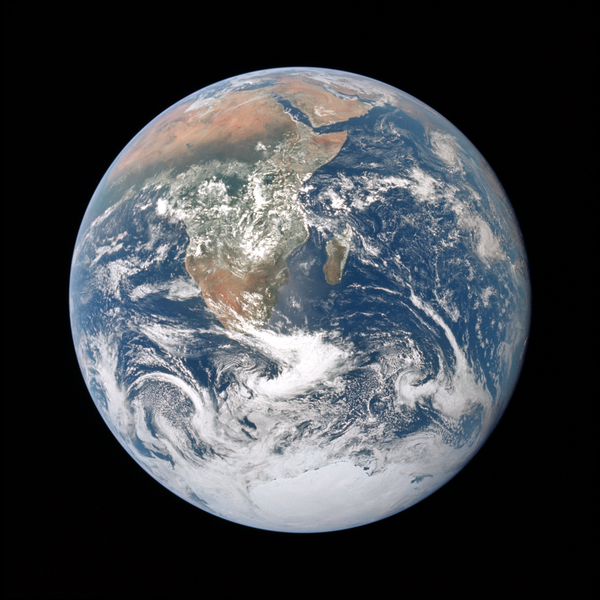
|
[[:File:Example.png]]
|
A text link to the file page — the leading colon prevents embedding. | File:Example.png |
[[Media:Example.png]]
|
A direct link to the file itself; the reader downloads it instead of seeing it embedded. | Media:Example.png |
Options are separated by pipes, in any order. Any parameter that is not an option becomes the caption. A red link means the file does not exist — check the spelling or upload the file first.
Add categories at the bottom of the file page, just like on any page.
Embedding audio
The examples below use Example.ogg, a public-domain NASA recording of Apollo 11 launch-day communications. Audio plays in the browser; transcoding for compatibility happens automatically in the background.
| You type | What it does | You get |
|---|---|---|
[[File:Example.ogg]]
|
An inline audio player, with play/pause and a progress bar. | |
[[File:Example.ogg|thumb|Caption text]]
|
The player inside a framed box with a caption. | |
[[Media:Example.ogg]]
|
A text link to the file itself; the reader downloads it instead of playing it inline. | Media:Example.ogg |
Accepted audio formats are ogg and oga (Vorbis or Opus).
Embedding video
The examples below use Example.ogv, a public-domain NASA television clip of Buzz Aldrin descending the lunar module ladder. Video plays in the browser; transcoding for compatibility happens automatically in the background.
| You type | What it does | You get |
|---|---|---|
[[File:Example.ogv]]
|
An inline video player at the file's native size. | |
[[File:Example.ogv|thumb|Caption text]]
|
A thumbnail-sized player floating right, with a caption. | |
[[File:Example.ogv|300px]]
|
Fixes the width to 300 pixels; the height keeps the proportions. | |
[[File:Example.ogv|start=0:05|end=0:15]]
|
Plays only the given time range, written as minutes:seconds. | |
[[Media:Example.ogv]]
|
A text link to the file itself; the reader downloads it instead of playing it inline. | Media:Example.ogv |
Accepted video formats are ogv and webm (Theora, VP8 or VP9).
Files and entities
A file is not an entity and has no Q number: it cannot carry statements itself. To attach a file to an item, add a statement on the item with the image property (P32), whose datatype is Url, and put the file page URL as the value.
Example — the item Blue Marble (photograph) carries the statement:
image→https://wikibase.ronzz.org/wiki/File:Example.png
Open Special:EntityPage/Q162 to see it live: the statement links to the file page, and the file page renders the image. Because the value is a plain URL, the same property works for any file you can link to — an upload on this wiki, a picture hosted elsewhere, or a file on Wikimedia Commons.
The statement workflow is the usual one: Items and properties.
See also
- Help:Images (MediaWiki official) — the complete image syntax reference
- Help:Linking to files (MediaWiki official) — linking and download behavior
- Help:Extension:TimedMediaHandler (MediaWiki official) — audio and video embedding reference
- API:Upload (MediaWiki official) — uploads, including chunked uploads
- Help:Contributing — the contributor hub
Uploading from a URL
You can also upload a file by pasting a URL instead of choosing one — use the Source file section's URL option. It works for images, PDFs, audio and video. A Validate button reads the file's metadata (for Wikimedia URLs, straight from the source in your browser):
- The Destination filename is filled automatically, normalized to lowercase with any word separator — spaces, underscores, or capitalization changes — replaced by dashes (for example
National Geographic Society Administration BuildingorNational_Geographic_Society_Administration_Buildingbecomesnational-geographic-society-administration-building). You can change it before uploading; the file extension is added automatically. - The Summary is filled with the file's description from the source, up to 2000 characters, cut at a sentence boundary when longer.
- Author and the license are pre-filled when the source provides them — check them, since attribution accuracy is your responsibility. For non-image files (PDF, audio, video) the validate step reports the file type and size instead of a preview.
For large Wikimedia files the upload itself also happens through your browser, so the wiki server never downloads the file from Wikimedia.
- The license field is pre-filled when the source names one, and the wiki checks it against the instance's license items. When it finds a match it shows a confirmation line — "License fetched from source: {value}, we think this corresponds to {label} (Q#)." — with Yes, that's right / No, let me correct. Say No to clear the field and pick the license yourself. Attribution accuracy stays your responsibility.
Embedding a GeoGebra worksheet
A GeoGebra worksheet is saved as a .ggb file. It uploads and versions exactly like any other file (Special:Upload, "Upload a new version of this file") — the accepted-format list includes ggb. Unlike an image, it embeds as an interactive applet that readers can pan, zoom and manipulate in the page.
| You type | What it does |
|---|---|
[[File:Parabola.ggb]]
|
The interactive worksheet at the default size (800 × 600). |
[[File:Parabola.ggb|600px]]
|
Fixes the width to 600 pixels; the height keeps the 4:3 proportions. |
[[File:Parabola.ggb|thumb|Caption text]]
|
A framed applet with a caption. |
[[:File:Parabola.ggb]]
|
A text link to the file page — the leading colon prevents embedding. |
Replace Parabola.ggb with your worksheet's name. The same options as images apply (width, thumb, caption, alignment). Upload a worksheet to a page to see it render.
The applet loads from a separate, cookie-less origin (ggb.ronzz.org) inside a sandboxed frame, so a worksheet cannot read this wiki's pages or your session. For the same reason, GeoGebra is configured to not run JavaScript stored inside the worksheet — worksheets that rely on embedded JavaScript may not behave exactly as they do in the GeoGebra desktop app.